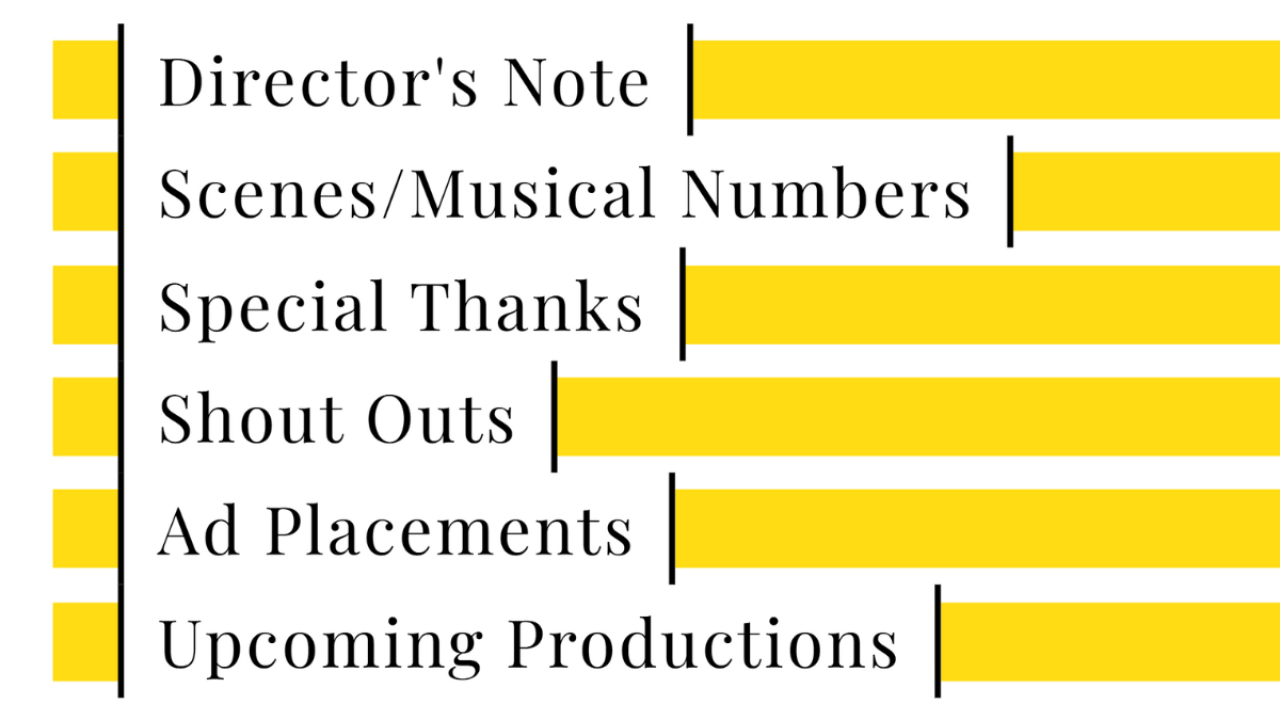
The built-in digital playbill is designed to be ready for opening night without ANY extra effort from the show's director.
Just activate it and share the QR code with the audience - it's really that simple!
The magic of the built-in playbill is that it automatically extracts information you've already worked hard to curate for your production.
- Cast, crew, orchestra, and leadership credits from the show's existing character list, scenes, and role assignments
- Bios and headshots from existing talent profiles
- Poster image, showtimes, and tickets link from production details
- Studio calendar and contact info from the studio's existing profile
Deeper in the playbill creator, you'll find these editable sections:
Additional Credits
Any existing cast, crew, orchestra, and leadership assignments will appear in the playbill as-is.
Custom credits can be inserted manually using the playbill creator. These credits feature a freeform text area for each role and performer names. Manually inserted credits appear on the playbill below automatically imported credits from the show's role assignments.
Additional Bios
If a performer is assigned roles in more than one list (e.g. as a cast member and production leader), their bio will only appear once.
Custom bios can be inserted manually and since playbill bios are sortable by actor name or role, these manual bios will drop right into place among the automatically imported bios from role assignments.
Custom bios feature a headshot, first and last name, assigned role, and bio text.
Director's Note
The director's note is a basic paragraph text input meant as a welcome message for a production's audience and patrons.
Special Thanks
Another basic paragraph text input meant for crediting organizations and individuals who helped make the production possible, but who do not fit naturally into the cast, crew, and leadership credits.
Shout Outs
Shout outs feature the ability to add simple text messages in the program alongside the sender's name.
These text-only entries will be grouped all together near the bottom of the playbill, just above the studio calendar.
Ad Placements
Custom ads can be created and they will be automatically inserted throughout your program in the order that they appear. Ads are slotted into your playbill between other sections. If you have more ads than playbill slots, remaining ads will appear near the bottom of your playbill just above the studio calendar.
Only one ad will appear per slot. If you do not use some sections, more than one ad may appear back-to-back since there will not be a section between them.
Ad Content
Custom ads feature an uploaded image, a sponsor byline, and a button. The button is a clickable call-to-action. The button text is customizable and can be up to 15 characters long to suit your ad sponsor's value proposition.
For example, a landscaping company might want a button to their website that reads "Get a quote" while a local restaurant might want a button to their menu that says "Place an order".
The button will not show unless there is a destination URL provided.
Ad Design
Remember that the entire playbill is designed for mobile devices, since your audience is expected to view it either on a smartphone or tablet. So the ads will appear full width on small screens and max out at 400 pixels wide on larger screens. Ad images should be designed at least 800 pixels wide since most modern devices are double pixel density (which is a fancy way of saying they're very high resolution).
Ad images may be any height, giving you flexibility to sell ads at a premium for bigger ads. For example, you might charge more for a tall ad (like an Instagram reel) and less for a square ad.
You can also offer premium placements - since the ads will show in the order you define, you might charge a premium for top slots.